I’m on day 6 or 7 of using a Mugen 1800mah battery in my HTC Desire Z. So far so good, it definitely seems to have 2 to 3 more hours of useable uptime in it over the stock battery.
Just wanted to keep the masses updated 🙂
I’m on day 6 or 7 of using a Mugen 1800mah battery in my HTC Desire Z. So far so good, it definitely seems to have 2 to 3 more hours of useable uptime in it over the stock battery.
Just wanted to keep the masses updated 🙂
So you may or may not know that I’ve got this Whole Home Audio system and networked surveillance system; both are combinations of off-the-shelf hardware and custom software. Together, they’ve been carrying the torch for my fledgling home automation aspirations.
A full-fledged home automation system can do all sorts of cool things – control lights, sprinklers, link to the alarm system, interface with voicemail, play mood music, etc. In general, you’re talking Entertainment/Convenience, Security, and Comfort.
I’ve finally added Comfort to the mix, by way of a WiFi-enabled thermostat.
I’ve had my eye on this category for some time, having read about X-10 and ZigBee and any number of other communication protocols. And while I may agree that a large abode can benefit greatly from complex automation, I always considered a smart thermostat to be the first order of business.
First, some clarification. I’ve been running programmable thermostats for years, as I’m sure most of you have. There are real energy savings to be found by setting your furnace to drop a few degrees at night or during the day when you’re not at home. And if you work a 9-5, then the thermostat’s schedule-based program is likely sufficient.
I do work a 9-5, but my weekend schedule is often up in the air, and there’s no real guarantee that my life will adhere to my thermostat’s schedule. If you happen to forget to hit the “away” button when you run to the mall, then the real answer is that your home is being heated unnecessarily until you get back. And if you err on the side of being miserly, then you may find yourself a little chilly (or hot) on the weekend because you forgot to set a comfortable temperature.
My forays into occupant awareness, then, were necessary prerequisites to a smart thermostat. The next prerequisite was cost, and Radio Thermostat Company of America has ticked that box with their US$99 CT-30 thermostat.
The thermostat connects to your home wifi network, just as your laptop would, and once connected it talks “to the cloud” so that you can access your thermostat using a web browser or smartphone app. This is great – but the real usefulness for me lies in the Application Programming Interface, which means that my custom-built home-automation system can talk to the thermostat.
As such, the thermostat’s typical 7-day/4-program schedule is set to maintain acceptable at-home temperatures, while the home-automation system – being occupant aware – can override the thermostat and set a lower (or higher) temperature when nobody is home.
So can I expect to save $99 on my gas/hydro bill with this solution vs. a typical programmable thermostat? Maybe. Does this solution check all of the right boxes as a hobby project with real-world usefulness? Most definitely 🙂
I’ve only recently finished the coding that controls the thermostat, so I’ll keep an eye on it over the next few days to see how it performs. After that I’ll add some logging (to see when the hvac system is actually on and for how long) as well as the requisite intranet webpages for feedback/control.
[update 2011/04/29] While I haven’t had any real problems with the thermostat and the home-automation integration, I decided rather quickly that it needed to be even smarter.
I’ve moved from a fixed “away” temperature to an offset method, where the system sets the “away” temp as an offset of the program temp. This is to handle the situation where the house is uncomfortably cold/hot when you arrive. Instead, it will now be about 2C off of the program temp, which will still result in acceptable savings.
Right now I’m struggling with a complex matrix of situations involving overriding the automation system. I think I’ve got something but I’ve run out of time right now, so more later.
[update 2011/06/01] So this setup has been working pretty well. But I decided that I wanted more variables.
They say that no man is an island. Well, so it is that no HVAC system is an island either. In this case, the surroundings – external temperature – play into the efficiency and performance of the HVAC system.
So I added some code to make some decisions based on external temperature (which may include windchill or humidex). As it stands now, the automation system will actually set the HVAC system to an “off” state if it determines that external temperatures don’t warrant consuming resources to heat/cool the house. The thinking is that you can open a window and let nature do the work instead. This will occur even if temperatures are higher/lower than the desired setpoint, which would normally result in the HVAC running.
The method is extensible, so if I need to get really exotic then I can look at cloud conditions and windspeed as factors which can influence the decision.
[update 2011/06/13] Here’s a screenshot of the work-in-progress webpage that provides current state and historical information about the thermostat. The graph also represents my first foray into the HTML5 canvas tag.
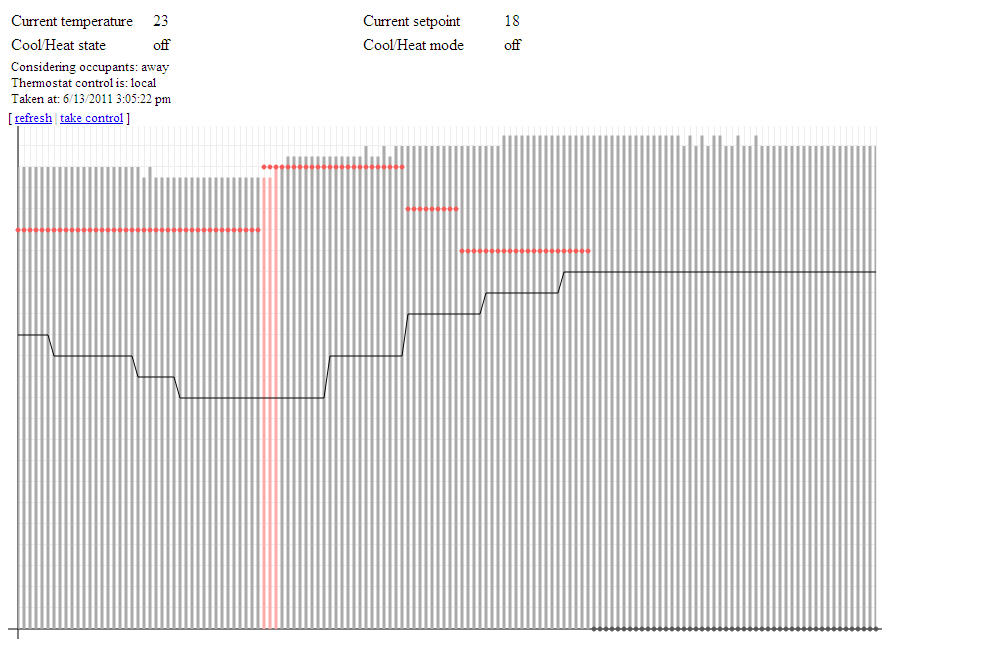 The graph actually shows quite a bit of information. The bars show interior temperature, the line shows exterior temperature, and the dots show the desired interior temperature (the “setpoint”). Both the setpoint and the interior temperature can be any of three colours each: grey, blue, or red, signifying the hvac mode and state (off, cool, or heat). So the red bars in the graph at the left show that the hvac was heating the house at that point in time, while the red dots indicate that the thermostat was in heat mode.
Notice that the setpoint eventually goes grey; this is related to the upward trend in the exterior temperature, represented by the solid line. That’s putting the “smart” in smart thermostat 🙂
Also worth noting here is that I’m using JSON for the first time to pass this information from the backend to the webpage. Nifty stuff. I fully expect that I’ll be porting my knowledge to projects at the 9-5; I’m particular amped about using <canvas> to bring some improved visuals to our main web-based app.
[update 2011/09/15] Occupant prediction is active and working well. So far the crystal ball can’t see too far out in the future, by virtue of the fact that normal commutes are too short for any meaningful trending data to become obvious. For my commute the system seems to be averaging 15-20 minutes of foresight, while Shelly’s commute garnered an impressive 40+ minutes today. Not bad.
With this level of performance I’ll probably end up increasing the “away” heating offset to something like 2.5-3C from its current 2C. The cooling offset is a little trickier, as the hvac seems to have a harder time lowering the temps in the house.
[update 2011/10/05] So the system proved its merit the other day, doing exactly what I intended it to do re: occupant prediction. The conditions were such that this particular instance represented the first time the system exhibited practical usefulness due to the prediction code.
See the graph below:
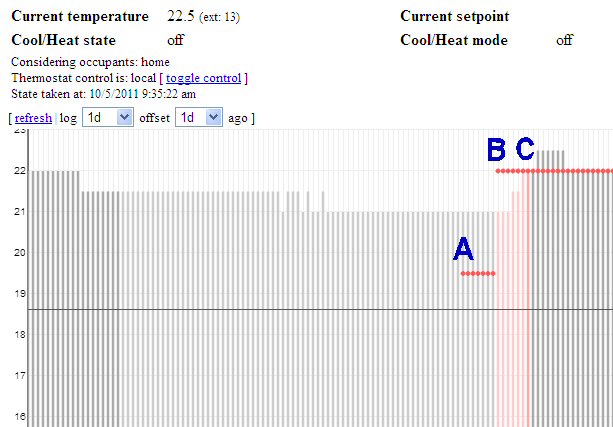
Occupant prediction in action
A: at 5:00PM, the thermostat switched to a new program. This program calls for a temperature of 22C. Since nobody was home, the automation system called for a temperature of (22C – 2.5C = ) 19.5C. The HVAC was not turned on as the measured temp was higher than 19.5C, however the system was “armed” (set to heat mode) as the measured temp was within a predetermined range of the desired temp.
B: at roughly 5:35PM the system determined that occupants were on their way home. Looking at the logs I believe it estimated an arrival time of 5:55PM, but that’s not important; what’s important is that, at 5:35PM, the automation system told the thermostat to remove the offset so that the thermostat would now target the program temperature of 22C. Notice that the thermostat turned on the HVAC at this point, since the measured temperature was below 22C. Also note that the bars representing the measured temp are a light red, indicating that the system was heating while nobody was home.
C: at roughly 6:05PM the automation system detected at least one occupant. The bar for measured temp appears as a darker red to reflect this new occupant state, and to indicate that the HVAC was still heating the house. At the next polling cycle (5 minutes later) the HVAC had reached the desired target of 22C and therefore switched off.
The result? The house was cozy warm when I got home, due solely to the fact that the automation system knew I was on the way home. Good news!
[update 2011/10/15] I just came across this post which details another project which talks about HVACs and occupancy prediction – albeit a project operating under the umbrella of a well-known corporate entity. The project calls itself PreHeat, and while both approaches (mine and theirs) depend on occupant detection, they differ in that the PreHeat method uses historical occupancy data to predict future trends – whereas mine uses actual occupant-location data. One could argue that, on the face of it, my approach would offer more accurate predictions. However, PreHeat doesn’t rely on an external service API and is able to derive all of its data simply on the basis of actual bodies being home.
Regardless, I thought it cool that there are other people working on solving the same “problems” as I am 🙂
[update 2011/12/29] Evolution of the code continues. The latest addition is a post-heat fan circulation feature, which runs the fan for a few minutes after a heat-cycle in order to help equalize temperatures throughout the house. This is a feature that some thermostats come with out-of-the-box, and it’s quite useful. My thermostat doesn’t have this feature built-in, but the home automation system is capable enough that I can add these sorts of features myself. Along the same lines I had also previously added a window condensation-reduction mode, which runs the fan periodically for 30 minutes or so overnight if external temperatures are low enough and a heat cycle hasn’t occurred in some time. And when the system is in cooling mode, the automation system will start running the fan if internal temperatures are rising and approaching the desired setpoint – the idea being to mix the warmer air on the upper floors with the cooler air in the basement.
It’s just nice to have that amount of control and versatility.
Not too long ago I wrote about one of my perceived issues with today’s variety of tablets; that is, the lack of multi-user solutions to such things as native email access and other personal information.
To recap – I don’t want guests to pick up my tablet and have unfettered access to my email. This may not be an issue with web-based email, where you can make a point of signing off after each email session, but it’s definitely an issue with native apps and their cached credentials.
But a strange thing happened today. RIM launched the Blackberry Playbook, and it just dawned on me that one of its most-maligned “features” could actually serve to solve the multi-user conundrum.
I’m talking about the Blackberry Bridge method of pairing to your (Blackberry-)smartphone and gaining immediate, seamless access to the email and calendar stored therein. I use “stored” loosely, since there’s no requirement that the data actually resides on your smartphone, but rather that your smartphone is configured to access that data around the clock.
So there it is – you can sit your tablet on the coffee table and nobody can access your email because they can’t pair it to your smartphone.
Would that feature be enough to reverse a recent tweet I made, decrying the Playbook as an also-ran? (at least, for the short-term – which can easily become a very-long-term in the technology industry)
No – since you won’t see me sporting a Blackberry anytime soon. And for the larger audience of tablet-yearning consumers, I still say “no” – since I’m not aware of many consumers who share my particular brand of concern.
Now, all hope is not lost. Some time ago BMW and RIM announced a hook for the iDrive interface allowing you to access text messages and emails on your Blackberry through iDrive. This interested me – mildly – since I like iDrive and I like technology. But I don’t love it enough to require my car to link to my text and email messages on my phone, particularly when those two things are at the bottom rung of today’s legions of socially-connected solutions (ie, Twitter, Facebook (ugh), and myriad BBM-competing freeware).
But the point is that it’s within RIM’s ability to extend Blackberry Bridge to non-Blackberry devices – and perhaps there would be more consumers willing to emerge from the dark and confess that they, too, seek some sort of user-partitioning when it comes to personal, private data on their tablets. Perhaps this could be RIM’s great differentiator re: Playbook vs. iPad and co.
Hrmm.
Love this article. This is what I mean when I talk about technology working for you rather than you working for technology:
http://ca.gizmodo.com/5789293/buried-under-an-avalanche-of-options?skyline=true&s=i
Development has been slow on the Home Audio system lately. Which isn’t to say that it’s not getting used; rather, I’ve been busy doing other things – some technology related, some not – and the system is quite mature at this stage after many years of development.
Nonetheless, ideas pop up every now and then and they’re compelling enough that it’s worth it to dust off the code and Make It Happen(tm).
Such is the case with “universal search”. Regular followers of this blog will know that the search function is already quite powerful, so much so in fact that you can get lost in the features – and possibly become turned off from search completely if you’re trying to do something simple.
It dawned on me the other day that it would be really nice if I could simply search for a string without having to specify the field to search on. So for example, I want to search for “lounge”, but I don’t necessarily want to give the system any more information than that. With “universal search”, the system will search:
… for your particular search text. You enter your text once and the system searches all of these fields.
In hindsight – and from your perspective – this is one of those “well duh!” sort of things. But again, it’s easy to get caught up in gee-whiz features and completely neglect the stuff that seems obvious. So pardon moi, but at least the feature is there now <g>
Not every relationship is all rosy…
(man, I never thought I’d say this, but the on-screen keyboard is actually faster and easier to use than the hardware keyboard!!!)
Anyhow… when I switched to Android I switched my email notifications from SMS to Gmail. A little background:
I run my own personal email server, and while it supports IMAP Push, I’ve never found a client implementation of that protocol that had acceptable battery usage. Regardless, while it’s nice to get your emails immediately and be able to perform some action on them immediately, I’ve always wanted to maintain strict control over which emails generate a “new mail” alert.
There are a number of ways around that triage problem. But then you get into complexities over how you want your mail organized vs. what you want to be notified about… Long story short, I opted to create an out-of-band notification system specifically for the emails I was interested in. This has the added bonus of being extensible, so that I can define times of day that notifications are active, complex state tables that affect notification eligibility, and things like remote awareness.
Anyhow, these out-of-band notifications were traditionally delivered via SMS, and in the WinMo world I had coded a solution whereby a second, specially-formatted SMS would tell Pocket Outlook to sync email. The result was a poor-man’s push solution – perfectly functional, if not the most efficient.
So that’s the background. Since I place great value on the flexibility of this notification system, it was paramount that I could carry over its core intent to my Android smartphone. And I opted to ditch SMS and go with Gmail as the delivery mechanism.
So that’s the background then.
What I’ve been finding, much to my dismay, is that I’ve been missing notifications. In the SMS world it was possible that a notification would get delayed, or lost altogether – but I didn’t expect that from Gmail’s push notification system running on Android 2.2.
After some digging I came to realize that quite a few of these missed notifications were indeed making it to my phone, but they were ending up in the trash and hence no alert was being generated by the Gmail app.
Gosh darnit! Chock it up to Gmail’s “conversatons”, where your emails are grouped (ie., “threaded”) by subject. So if you decide to delete a single message in a conversation (which is something you can’t do in the mobile app – more on that in a minute) then the whole conversation would have a “trash” label applied to it.
And it seems that when a conversation has the trash label applied, the mobile Gmail app removes it from the inbox view. Critically, it won’t alert because the new message is part of a “deleted” conversation.
Now, I haven’t tested this, but it’s possible that things would work differently if you delete a single message in the Gmail web app. But on the Android app no such option exists – it’s the conversation or nothing at all.
Now I have to imagine that this is of the utmost frustration to people who use Gmail (and the Gmail mobile app) as their primary mail client. Fortunately I’m not one of those people, so I’m testing a solution (and it may be that this can apply to the aforementioned group of people too – unless they’ve figured it out already).
Basically, you don’t delete anything.
This is something that Gmail originally trumpeted – that you now had so much space that you’d never to delete an email again. And because you need some way to manage a huge inbox with email that’s never deleted, and people generally pout if they can’t permanentky delete their own email, Google acquiesced and added some trash “label” and other what-not to appease the masses.
But in my case those solutions don’t work. I can get by without deleting because I only care about new emails – or more accurately, new notifications of new emails.
So my solution is not to delete, but also, to only sync 1 day worth of email out of my inbox. That way, the old undeleted stuff will fall out of view in the mobile Gmail app. I’m also syncing “all” starred items, so if something is of interest and I need it to stick around for a few days – like a URL that I’ve emailed myself – then I can star it and it will remain in view.
That’s the theory. I’ve only just now made all the changes, so you’ll need to follow tradition and give me a few days to deal with the (inevitable?) fallout.
 Deryk Piper's Blog