More Cast, more Mobile

Just more development things.

Some of you (who are you?  WHO ARE YOU?!?!?) may have noticed the following in a recent blog post concerning the Vizio SmartCast products:

Whatever transport controls the speaker supports are hidden away as swipe and tap gestures within the ring.

Truthfully there are only two supported gestures: play/pause (the “tap”) and next-track (the “swipe”, which can occur in any direction).  And being the deranged soul I am, and in the name of Progress(tm), I decided to dive down the rabbit hole that would hopefully end in being able to use these gestures to control my (11-year-old-)music system.

Some background.  What I really like about Cast is that it really does provide a comprehensive bridge to the hardware that’s rendering your content.  I talked briefly about the API’s messaging abilities and how I primarily use my own messaging solution to have clients (“remotes”) talk to the Cast devices (as “renderers”).  But I have to say, there was an embarrassing level of giddiness on my part once I was able to turn said ring on the Vizio devices and watch volume level automagically change in my music system interface.

That sort of dark magic is powered in large part by the messaging features in the API.  And the closer you come towards full Cast API compliance, the more your powers level-up:

  • rich media metadata (including images) in the Google Home app and Cast notification
  • a track scrubber that updates in real-time on certain Cast clients
  • interaction via the (much maligned-)Cast nofitication that appears on your Android device when something is Casting on the network

Sooo… like some Dr. Frankenstein groupie I’ve settled on an implementation that mixes Google’s magic with my own amateur code and the result is something wonderful, horrible, and awesome to behold!

Riiight.

Sparing the hyperbole: I got to the end of the rabbit hole, and can now use the Vizio gestures to control the music system.  I’m listening for the transport messages (as defined by the Cast API) coming from the Vizio devices and acting upon them.  These tend to map directly to the transport controls that would otherwise appear on the web player, but which are hidden when the player is running on Cast.  I’m also responding to Cast status requests that various clients send (including the Vizio devices).  And to top it all off, in the case where a Cast-capable client is actually connected to an existing Cast receiver session, I’m using the Cast messaging API to send transport messages to the receiver app directly – again, these map to the hidden transport controls on the receiver.  This happens in place of using my remote/renderer messaging solution.

Cool.  What else?

Is that an app in your pocket, or…?

Accessing the music system while out and abroad has taken on many, many, many different forms over the years.  Names that come to mind:

  • GSPlayer
  • XiaaLive
  • Winamp

All of these things were eventually replaced by the web player powered by HTML5’s AUDIO tag.  And that’s great and all, but for mobile in particular I’ve wanted something more streamlined and purpose-built.  Plus it’s been an ongoing battle going up against things like “Gesture requirement for media playback” and Chrome’s tendency to kill timers on tabs that have been backgrounded for some time.

I’ve toyed with writing an app to resolve this but – newsflash – I didn’t write one, and I still haven’t written one.   What I have been angling for instead is to backdoor my web player into some container that would let it have all the rights of a native-app citizen, kind of like I backdoor’ed the web player into Cast as a receiver app.

And the good news is that there’s a lot of work underway to make first-class citizens out of web apps. Progressive Web Apps, Instant Apps, even the old “mobile-web-app-capable” meta tag that started it all.

So to that end I’ve finally gotten to a point where most pages are presentable/usable on mobile.  And, crucially, the web player will pin to the bottom of the page and stay there while you navigate the site.  And boy was that fun.  Remember, I’m not a design guy – so getting this thing to work in portrait/landscape wasn’t pretty (and the CSS/JS still isn’t pretty, but whatever).

Anyhow we’ll see what container this thing eventually ends up in (Cordova app?  Tasker app? PWA? Is “Add to Homescreen” enough?)  I’ll report back here once I know more 🙂

Display-capable Cast UI

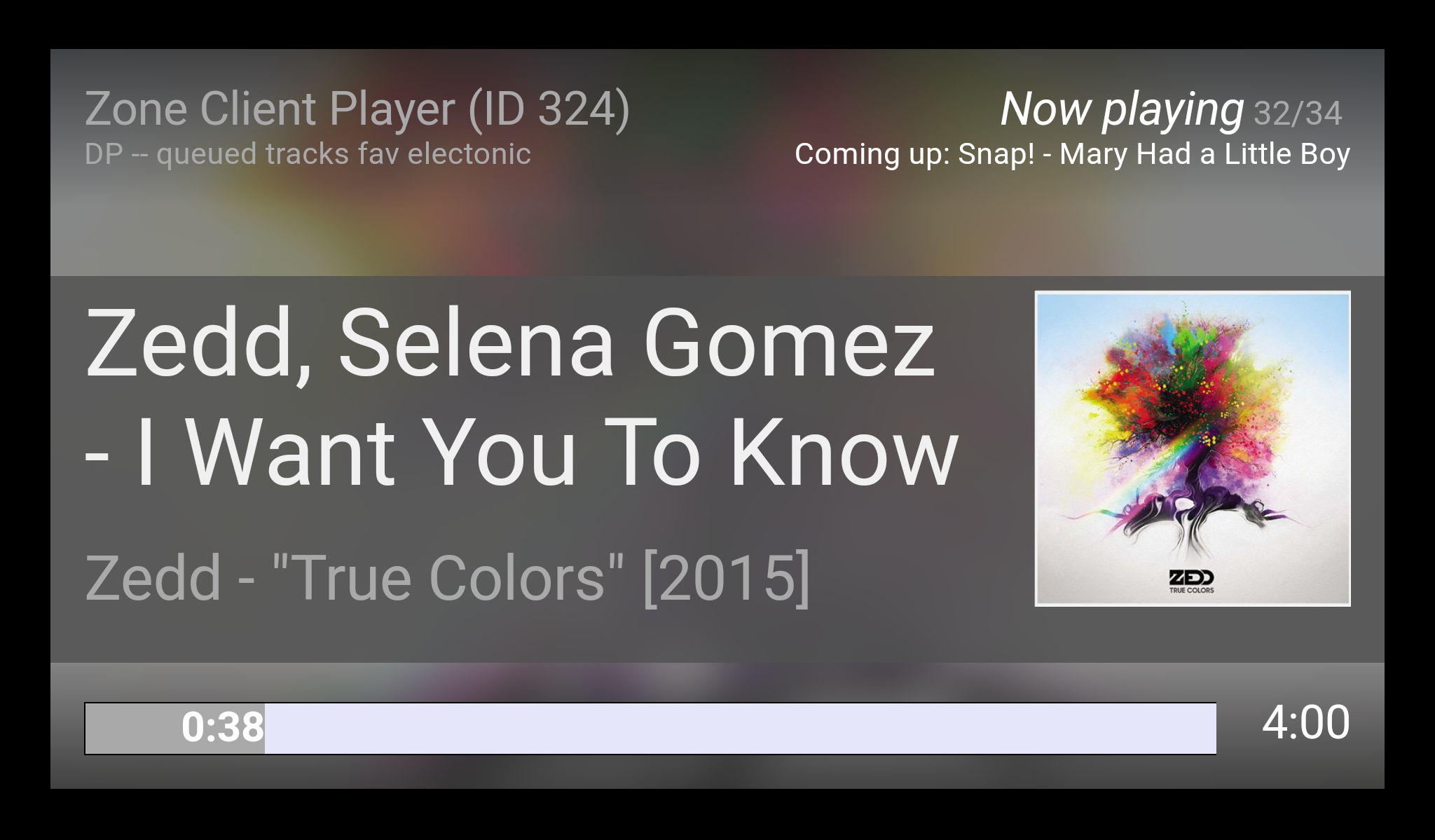
I mentioned in some other post that I’d post a picture of the UI I designed for display-capable Cast devices playing music from my music system. So here’s an example:

This is taken on my tablet set to impersonate a Cast device, so the UI is a little more cramped than it appears on a TV.

Pretty much sums up the experience though.

Music – now with Google Cast integration

So it’s taken me the better part of two weeks to implement and many months of contemplation, but I finally have a fully-functional Google Cast implementation in the music portion of my home automation system.

Why two weeks?  Much of it was spent doing research.  Most of it was spent spinning my wheels before realizing that a lot of the pieces I’d need to complete the project were already in place.

I don’t recall how much detail I’ve gone into in this blog about the technical details of my web-based music system, so I’ll just summarize.  As far as playback is concerned there are two ways to actually listen to music on my network; either via a SHOUTcast server, or by accessing the music files directly over HTTP. SHOUTcast was the method of choice in the early years of development and eventually it became possible to add transport control functionality to control the SHOUTcast stream.  As a result the entire experience resembled a web-based player and the tunes were on-demand.  But it wasn’t really a web-based player, so the next phase of development was to implement a real web-based player that accessed the music files directly.  And as is the case with all modern web “apps”, that player uses HTML5, Javascript and CSS to work its magic.

So that’s the history.  When implementing Cast I followed much the same path; the first crack was to use the Default Media Receiver and have it stream from SHOUTcast.  This worked – surprisingly – but again the limitations of such a setup (mostly a result of buffering lag) proved onerous.  I deliberated, and researched, and deliberated some more, before deciding that the Cast device had to access the music files directly.  How?  Where to start?  And then it hit me.

IFRAMEs.

I don’t remember what came first; the Internet(tm) or my own “Aha!” moment.  The Internet(tm) said that it was possible to browse arbitrary websites on a Cast device by loading those sites into an IFRAME.  My “Aha!” moment came when I realized that my web player – the HTML5, Javascript and CSS player – used the very technologies that underpin Cast’s receiver “apps” and should therefore be able to run directly on a Cast device.

Put your web app in an IFRAME and by George you have it

Of course there was some “glue” to sort out.  Most important to a Cast implementation is that the receiver app stays resident, otherwise Bad Things(tm) happen.  Well, more like Undesirable Things(tm): the Cast device may go back to its default state, or at the very least your sender will lose connectivity to the (non-existent) receiver.  So I had to code a small receiver and get a little creative on the host side to make sure that the web app and receiver stayed in sync.

But mostly – it just kinda worked.  The web player runs in an IFRAME and the receiver app runs in “top”.  The web player – if left to its own devices – will just trundle through the server’s playlist until there are no more songs to play.  Or, with the correct settings, the player can be controlled from any other device accessing the music system.

How to control your Cast audio player

This is the interesting part.  Obviously you can’t interact with a web app running on a Cast device.  The Cast APIs have a robust messaging system that allows two-way communication between the sender app (which you can interact with) and the receiver app.  This is great, and I imagine it works well for transport control.  But I didn’t use it a great deal for two reasons:

  1. I had already developed a way for a “remote” to control a “renderer” in my music system (see the last couple of paragraphs of this post).  That is, any device – the “remote” – can access the system and see a representation of another device’s web player – the “renderer”.  The remote queues commands on the web server which are subsequently picked up by the renderer, effectively making transport controls available to the remote.
  2. While I appreciate Google’s concept of senders and receivers, my only desire is to have a device load the web player onto a Cast device and then have the Cast device communicate with the web server directly.  I don’t need the sender to maintain connectivity to the receiver.  This mirrors the existing status quo where any device – smartphone, tablet, PC – is just a client to the code running on the server.

I do use the messaging API to setup the receiver app and load the IFRAME.  But once the web app is loaded on the receiver, all messaging goes through my code running on the server.

So ya, add in some housecleaning and Bob’s my uncle.  I even designed a new web player interface specifically for display-capable Cast devices; something that looks a little more presentable on a TV.  The audio-only Cast devices just run the same player that any old smartphone/tablet/PC web browser gets.  I may reduce this to the bare essentials at some point but it’s really not necessary to do so.

I may post some pictures at a later date.  You know, if the adoring masses that frequent this blog demand as much.

Latitude is (almost-)dead – how do I go on?

I’ve espoused the virtues of Latitude as it relates to my Home Automation obsession.  While Google’s Location service once provided a critical means to validate home/way state, it was always critical in the determination of “occupant prediction” – that is, setting up a home-automation posture in anticipation of homeward-bound residents.

It’s no news anymore that Google is shuttering Latitude on August 9th.  It’s something that I predicted on my twitter feed, and I wasn’t alone in feeling that the end was near.

Google attempted to placate the masses by adding a Location feature to Google+, but from a developer perspective it was the retirement of the Latitude API that hurt the most – never mind the giveth/taketh soreness that has come out of Google’s decision to maintain Location History but close it off to 3rd-party developers going forward.

Whatever.  That ship has sailed (or soon will).  The bigger question for me was – how the heck do I keep location-awareness as a staple in my home-automation system?

I was pretty sure that 3rd-party solutions would crop up, ala the Google Reader debacle.  But unlike RSS feeds, there’s something very personal about location data.  Obviously I was (am) placing a large amount of trust in Google to hand over my location data to them, but I was very loathe to do the same for any other entity on the face of the planet.

So I enlisted my go-to man Tasker to fill the void.

Tasker always had a close relationship with Latify on my smartphone.  Tasker would determine which of three Latify profiles were most suitable at any given time.  So it wasn’t a huge stretch to rip out Latify and have Tasker poll location itself, sending that information to my home server so it could Do Something(tm).

And in a nutshell… that’s all there is to it.  With the help of the Tasker App Factory, I’ve produced an .apk that’s been installed on the wifey’s phone and – voila – the home automation system will remain location-aware after August 9.

So that’s part one.  And a very important part it is.

Part two encompasses what to do about sharing location information with friends, whcih is what one traditionally thinks of when they think of Google Latitude.  And in all honesty, I’ve only ever really seen that as valuable in the context of family, where each member probably wants to know where the other is for safety reasons.  To that end I whipped together a page on my intranet which takes Tasker’s reported location data and puts it on a lovely map.  As with all things intranet, this page is accessible from the Internet at large – for authorized users – and works on a laptop as well as it does on a smartphone.  It uses the Google Maps API for all the map-py stuff, AJAX so that locations update dynamically, and it’s generally Very Cool(tm).

So there it is – I’m quite happy with the current solution.  So a heartfelt “Thanks!” to Google for $crewing developers the world over once again.

Making tech work for me (smartphone automation with Tasker)

I’ve made a few mentions of my fondness for MortScript during my time in the Windows Mobile world.  It was most useful when it came time to automate in-car tasks – resolve Bluetooth connectivity drops, dis/connect A2DP, keep the screen alive.  Other things were more general in nature, like emulating a Bluetooth “timed discoverable” feature and restoring the Normal ring profile after Silent had been active for a period of time.

All useful additions, features or fixes.  And I’m sure that I’ve given a shout-out to Tasker as my go-to-guy for giving me the same sort of hacking pleasure on Android.

Fortunately, my Tasker experience to-date has been more about adding functionality than fixing O/S problems.  And I’ve extended the functions I mentioned in this post to the point that I’m tickled pink (not literally, of course) over the added convenience that has been bestowed on my Android phone.

The aforementioned post has a section aptly named “Tasker” that basically talked about things which happen automagically when the phone is in the car.  Basically, when the car’s Bluetooth is detected, the phone can be in one of two states which we’ll call “Car In” and “Car Docked”.  It’s the latter which is of most interest, and it becomes active – as mentioned in that previous post – when external power is connected.

(it would be possible to sense the presence of an actual “car mode” cradle, but the Desire Z doesn’t have the requisite hardware.  I find it acceptable to consider the phone in a “car docked” mode if the car’s bluetooth is detected and the phone is plugged in – which pretty much means that the phone is sitting in a cradle)

Gone are the days of auto-launching Google Navigation – more on that later.  I definitely wanted a 3-foot user interface to come up when the phone entered Car Docked mode, but Google chose to deny access to the actual Car Home app on my phone.  So, I relied on Vlingo‘s “InCar” feature to emulate the Car Home app.  And this was… acceptable.  Vlingo’s usefulness as a Siri-like assistant was questionable, but I was digging the convenience of the InCar interface so I told Tasker to fire up this interface when Car Docked mode became active.  From there, I could launch Navigation or Maps or – if Vlingo was cooperative and background noise was low enough – speak a command to open any app of my choosing.

Vlingo’s usefulness fell significantly once it stopped being able to hear anything I tried to yell at it.  I think this happened shortly after I rooted the phone, but no matter; it was the kick in the pants that I needed to convince me that it was time to rid myself of this dysfunctional relationship with Vlingo.  Away it went.

It was subsequently replaced with a pure-Tasker solution, in which I could hold down the search key and up would pop a custom menu containing all of my useful in-car shortcuts.  So there was a link to Navigation, Opera Mobile, XiiaLive for streaming audio, and some other useful apps.  And this was… acceptable… but it was just wasn’t integrated enough.  What I really wanted was to hit the home key and have a real 3-ft interface appear.  What I really wanted was Google’s Car Home app.

My decision to root the phone was actually the ticket I needed to get Car Home installed, as it involves booting into recovery and installing a signed package file containing Car Home.  Anyhow, that was done, and so we arrive at the point where I am today – getting in the car and putting the phone in its cradle and connecting power automagically brings up the 3-ft interface of the Car Home app.

It may seem to you like I’ve spent a lot of time to get something going that’s trivial.  And on the face of it I’d agree with that perception.  But you have to keep in mind the how and why of it all.

The “how”, in this case, is Tasker.  And the “why”, in this case, is Tasker’s flexibility and power.  Car Home has the ability to launch itself whenever it detects a certain Bluetooth device – ie, the car – and that’s great.  But I want more to happen when my phone is “docked” in the car.  And this is why Tasker is important, and why I’d rather have Tasker launch Car Home at the appropriate time.  In actual fact, Tasker sets the phone’s “Car Mode” setting to true, which is a global setting which may have other (desired) ramifications.

Now… recall that I mentioned Tasker’s previous duty of starting Google Navigation whenever the Car Docked state became active.  I could tell you that it’s nice to have Navigation up when you’re driving, and to some extent that’s true, but my car has navigation built-in – and that screen is 2x the size of my phone’s screen.  I could tell you that Google Navigation shows semi-reliable traffic information, and that’s true too, but I don’t need that info for the entire drive.  Plus, I can always get there with two taps: one tap on the Home button to bring up the Car Home launcher, one tap on the Navigation icon to bring up navigation.

So why did I ever have Tasker launch Navigation as soon as the phone was docked in the car?

One word: Latitude.  Click the link.  Honestly, do it.  Then you’ll know why Latitude is important for me.  With Navigation active, GPS is also active, and when GPS is active the phone is aware of movement with more precision than it is when using WiFi and/or cell towers.

So Navigation was a useful means to a GPS-enabled end.  And while I still find Navigation useful, it’s really the Latitude updates that I wanted to occur while the phone is docked in the car.

Most obvious solution: tell Tasker to turn on GPS, and Bob’s your uncle.  Well, not so fast – even if Tasker can just turn on the GPS module and leave it turned on (which I doubt), you get into trouble with the opposite action: turning GPS off.  Suppose somebody is trying to use GPS when Tasker turns it off?

So my solution is somewhat more creative.  And this goes back to the “how” and “why” of using Tasker at all when Car Home seems suited to fulfilling your 3ft-interface needs.

Something else that I’ve had Tasker do is adjust my phone’s brightness dynamically.  And yes, the phone has an auto-brightness setting, but believe me when I say that the lowest brightness setting is still way too bright when you’re driving in darkness.  When the phone is docked, Tasker runs a task that loops and constantly measures the light-sensor’s reported ambient light level.  Then, in conjunction with the Screen Filter plugin, it is able to dim the screen to levels that would be un-achievable otherwise.  It can even take sunset/sunrise times into account, as those tend to be the trickiest times of day when it comes to suitable lighting.  This logic recently underwent a rewrite, and it’s not as straightforward as following the sensor’s (somewhat finicky and fluctuating) reported level.

Anyhow, this task is great because it’s an active loop that I can use to call other tasks.  And the lastest task is… one which attempts to get a GPS fix.  So every 60 seconds or so, Tasker asks the Android system for the most accurate location info possible.  Android dutifully obliges by determing which location services are permitted – GPS and/or “net” – and uses the most accurate one to get the requested information.  The beauty here is that it’s now Android which is determining what needs to be done to get the location data.  If Navigation is active and using GPS, then the location data is known and returned to Tasker.  Okay, Tasker doesn’t actually do anything with that information.  BUT… if GPS is not active, then Android will turn on GPS, get a fix, return the location data to Tasker, then turn off GPS if nobody else is using it.  Which completely solves Tasker’s  problem of determining when/if GPS should be active.

This is good news, because Latitude seems to be hooked into a system event notification that goes something like this: “if the phone determines that its location has changed, let me know.”  Well, because Tasker is asking for updated location info every minute, and its asking for the most accurate location info available, it’s necessarily the case that Latitude will get notified every minute if the phone has moved.  Meaning…

…all of my Latitude-dependent services will have precise, up-to-date location info.

I know what you’re thinking – what happens if I’m moving around and I’m not driving?  This is entirely possible.  And the short-answer is – nothing.  We’ll get the same old imprecise Latitude info and it may not be terribly relevant either.  BUT… and this is important… everything I’ve done re: Tasker and the “Car Docked” mode means that the special use case of having the phone docked in the car will result in precise, relevant Latitude info.  Period.  Even if I only drive one day a week, it’s now the case that the driving scenario is handled in a seamless, extensible, straightforward manner.  It requires no special user intervention that wouldn’t occur otherwise.  It doesn’t even require that Navigation is active.

And that’s the design philosophy that I aim for.  Look at a problem, find an elegant and workable solution.  Refine the solution.  And hopefully, extend the solution to resolve related problems.  If you can extend the solution, then you know you’ve come up with a solid foundation or approach.

That’s why I’m tickled pink.  I love to solve worthwhile problems 🙂
Me <3 Opera Mobile

So I’ve been doing some work off-and-on on a mobile version of the site I use to browse/play music on my home network. I’ve wanted a mobile-optimized version of the site for some time, and a recent development with my SHOUTcast streaming client of choice has made this project more of a necessity than a curiosity.

Critical to the operation of the site is the ability to touch-scroll various regions in the page. That, and the ability of the browser to support HTML5 Audio in the MP3 format. And so far, I’ve only found Opera Mobile to be worthy of solving the HTML5 Audio part of the equation while also remaining my mobile browser of choice.

However, I was having no luck with the touch-scrolling part of the equation. Many mobile browsers seem to have a problem handling straight-up overflow:scroll, and even the iScroll Javascript library wasn’t solving my particular flavour of problem. And what was working was working at a horrible pace.

Then I happened to notice that a manual update for Opera Mobile was sitting in my Android Market queue. Among reported changes was an update to the core (or engine) that the Android version of the browser was using. And wouldn’t you know it – upgrading to this version solved all of my touch-scroll issues, and performance is about as snappy as it is on the desktop Opera Mobile emulator.

So colour me happy. Now that the site is functional, I can work on prettying it up and adding gee-whiz features 🙂

Me <3 jQuery

I’m one to scoff at development tools/libraries which purport to make my like easier. Call me a masochist, but something in my head associates “easy” with “anybody can do it”.

I’m also one to get predictions horribly wrong, and the camps that I choose to align with (most notably in the TV sci-fi genre…) have been been known to get beat down by a difference of opinion or a lack of general interest on the part of society at large.

So it was that I heard of Javascript libraries like Prototype and jQuery, but I never paid them any mind. Big mistake. Having seen the latter library mentioned on all sorts of career-development sites, I decided to take a closer look.  And the result, I’m glad to say, is that I’m quite impressed and very likely to rely heavily on jQuery in the future.

It’s not that jQuery lets me do things in Javascript that I couldn’t do otherwise. Rather, jQuery lets me take mountains of code that performs some function and replace it with one or two lines which perform the same function. It really amounts to a shorthand version of Javascript, such that you still have to know what you’re doing in JS before you can use the shorthand.

Admittedly jQuery also lets you do cool things like perform animations. But from somebody who has written my fair share of Javascript animation functions, take it from me when I say that making a simple jQuery call to animate an element is a welcome relief, particularly when you have to consider browser inconsistencies.

So that’s it then – I’m adding jQuery to my recent spate of new undertakings.

OAuth 2.0 and Latitude API [update: it works!]

So my smart thermostat has been doing its homework and keeping itself abreast of new developments.  I’ve been tweaking the automation code and adding bits of logic to accommodate my particular nuances.

You may recall that one of the most important features of my setup is an ability for the system to automatically determine home/away status.  This is based on Bluetooth detection; and while I’ve still to add a large antenna to extend the detection range, I’m also acutely aware that this method of determining home/away status will always be reactionary vs. predictive.

As usual, the Wifey Factor(tm) is playing a critical role here.  A comment was made recently – well, a question actually – as to whether the HVAC system knows when we’re on the way home so that it can start heating/cooling the house automatically.

Admittedly, such a usage of the system leans more on the side of comfort than efficiency.  And I’ve already made a concession to comfort by setting a small(er) offset between home/away temps.  (IIRC, it’s something like 1C in cooling mode and 1.5C in heating mode).  I’ve also approximated a “should be getting home soon” decision process by setting evening programs which differ from the daytime programs; ideally, you’d really only need an overnight program and a not-overnight program, and the occupant detection would determine the home/away offset.

But I digress. In an effort to solve this little problem while also furthering my understanding of web-based technologies (ie, the Cross-Pollination(tm) effect, search the blog 🙂 I decided that the answer may lie in utiliizing the Google Latitude API.

We already use Latitude for tracking purposes, so the privacy concerns have been addressed already.  The premise, then, is simple – my automation system polls Google, gets our locations as reported by Latitude, and then does some calculations to determine if we’re on the way home.

Simple in practice, yes.  More difficult in execution, but only marginally.  One of the unknowns here was OAuth, which serves as Google’s (and many web services’) API authentication/authorization method.  I’d heard about OAuth, but never had a need to look into it – either for work or personal means.

And that’s a shame, really. Anyhoo, OAuth is done and done and now I’ve got my automation system pinging Latitude, calculating distances, and producing raw-ish data that I’ll later analyze to determine the most suitable “peeps are on the way home” algorithm.  I may even use it to supplement the Bluetooth detection method, which is sometimes hit-or-miss in lieu of that big antenna…

One of the more challenging aspects has been deciding what to do with outlier data points.  Latitude has this habit of sending you off 100’s of kilometers in some random direction for no apparent reason; we certainly don’t want the automation system going bonkers by thinking we’re flying in at Mach 5 from some random city in the US. And while I’m sure that there are many statistical methods that one can use to clean a data-set, such an endeavour would be secondary to the purpose of this project.

So to that end I’m currently using a “line of best-fit” (aka the Least Square Method) to fit a straight line to my Latitude data points.  It doesn’t completely solve the outlier problem, but it lessens the impact somewhat.  Anyhow I’ll pore over the resultant distance calcs over the next few days and…

… I’ll post back when I’ve got useful performance data.

[update 2011/09/15] Seems to be working well!  Check out the thermostat post for info.

DP and HTML5 – strange bedfellows

So a few days back I got my hands a bit dirty with HTML5’s CANVAS tag.  And some number of weeks ago I got into the history object and HTML5’s improvements to that.  Today I got my feet a little wet with the AUDIO tag.

It’s an interesting concept, really.  This most recent journey has been within the context of the home audio system, and I was just just just remarking to myself that development was at a virtual standstill for a number of months – and here it is that HTML5 is enabling a new coding push with real-world usability.

Well, that’s the theory.

The truth is that HTML5 and embedded media consumption are themselves strange bedfellows, and as a result, I find myself in the same position in my relationship with HTML5.

So forget about the abstracts.  My music collection is overwhelmingly encoded in the MP3 format.  And when I say overwhelmingly, I really mean completely – with the exception of perhaps 20 tracks, vs. the other 35,064 which are MP3’s.  The problem with MP3 – besides its lossy, yesteryear compression – is that it’s not in the public domain.  This doesn’t really mesh well with HTML5 – specifically, the AUDIO tag of HTML5 – which wants to work with open standards and hence is at odds with MP3.

So how does this affect me and my home audio system?  Glad you asked.

You may recall that the system consists of 2 physical zones, 4 general-purpose streaming zones and one special-purpose streaming zone.  It’s the general-purpose streaming zones that I use extensively when I’m not at home – ie, at work or in the car.  And despite advancements in the manner by which my intranet resources are made publicly “available”, the real truth is that using the streaming zones has always been a two-part affair; part one is to interact with the system using a browser, part two is to connect to the zone using a program on the client device.

Granted, quite often I can eschew part one, as the zone is loaded and good-to-go as soon as the client connects.  But one thing that really dogged me incessantly – besides security considerations that I won’t go into here – is the absence of any ability to play a single track without having to leave the web browser.

Yes, I’m talking about a desire to implement an audio client within the browser itself.

Now, Flash is capable of doing this.  And while Shelly’s phone doesn’t support Flash (argh), the truth is that Flash isn’t completely suited to the next logical step in this thought process – which is, replacing the streaming zones with a webpage and embedded player.  I mean, I could code a Flash app, but trust me when I say that that’s not going to happen.

But would could happen – and indeed, what I really, really, really want to happen – is to code an HTML5 “app” that can do this.  This would actually solve all sorts of niggling problems, like the issue of transport control that I talked about here.  The truth is that it could actually serve as a bonafied mobile music app, optimally designed for the small screen.

It could, if… MP3 and HTML5 played nicely together in all modern browsers.

And that’s the problem I’m having right now.  I’ve worked out the interaction, I’ve figured out that the current home audio system can easily support the types of XHR calls I’d need to make, I’ve got some working knowledge of JSON… heck, I’ve even got a working implementation now of an embedded player for playing single tracks.  But to make this all work I need HTML5 and it’s DOM-accessible AUDIO element, and I need cross-browser support of MP3 files via that same AUDIO element.

Desktop support is sketchy – as is mobile support.  I find it strange that Opera on Windows doesn’t support MP3 but Opera on Android does…?  And the native Android browser is supposed to support MP3 but it actually doesn’t.  <sigh>  The truth is that there’s no point burning the proverbial midnight oil on an HTML5 music player app for my audio system if support is hit-and-miss – across the devices that I actually use.

So as much as I’d love to cuddle up close to HTML5, the unfortunate truth is that it’s playing hard to get.

More location awareness

Having gotten my feet wet with occupant detection for the home surveillance system, I recently decided to tackle a similar scenario for another application.

This one was bought to the fore courtesy of two seemingly unrelated occurances.  First, was the move to Android from Windows Mobile.  My Touch Pro had a handy menu setup whereby I could easily send automated messages to my home network, and have it Do Things(tm) – notably, whether to notify me on my phone of received work emails.  So far I’ve found no easy solution to do this in Android, save the laborious method of writing and sending the actual emails which command my home network.

But I was willing to let it slide.  Until the second occurence – an apparent increase in the frequency of impromptu meetings at work.  With the need to be away from my desk, but still being at work, I would find myself often penning the emails to my home system telling it to direct work emails to my phone.

The obvious question here is – why not send work emails to my phone all the time?  And the answer should be equally obvious to the (non-existent) masses who read my blog missives; basically, I prefer to exercise a modicum of control over a series of repeating notifications for things that may not be of interest to me at the time.  For personal emails there’s a set of rules that determine what fires a notification and what gets summarized at some point in the future.  For work, I don’t see a point in being notified – by my phone – of a new email if I’m sitting at my desk staring at Outlook.

My excursions into the Bluetooth-powered occupant awareness solution at home have yielded favourable results, and ever since then I’ve sought to automate more tasks.  Many years ago I had written a Win32 program that interfaced with my personal mail server at home, displaying new emails as one-liners in a window that lived in the system tray icon.  The program would determine if I was at my desk based on the screensaver; an active screensaver meant that I was away, and no screensaver meant I was there – much the same way that IM applications determine your away status.  I decided that something similar was required for this new project.

What I ended up with was a combination of a Win32 console application and a WinLogon Notification DLL.  The Win32 console application can poll for the state of the screensaver, but the DLL receives events every time the screensaver starts/stops, or a logon/logoff occurs, or a the workstation is locked/unlocked.  Obviously the DLL has a richer set of conditions available to it than the console app, plus there’s definitely something to be said for event-driven processes vs. polling processes.

But both have their place.  In my implementation, the console app sits on a socket waiting for somebody to connect and tell it that my away state has changed.  This can be the DLL, or it can be a polling thread which is launched by the console app itself – the thread wakes up every x minutes, checks the screensaver, and also pings the main thread with the current state.  The main thread then sends an HTTP request to my home server, which then does all the work required to setup my mail server to notify my phone (or not to notify my phone) when a work email is received.

So long story short – it works.  I’m sure there will be some bugs to work out, but I’m just loving the feeling of having busy little tech bees working behind the scenes, Making Things Happen(tm), without any direction on my part. <g>